
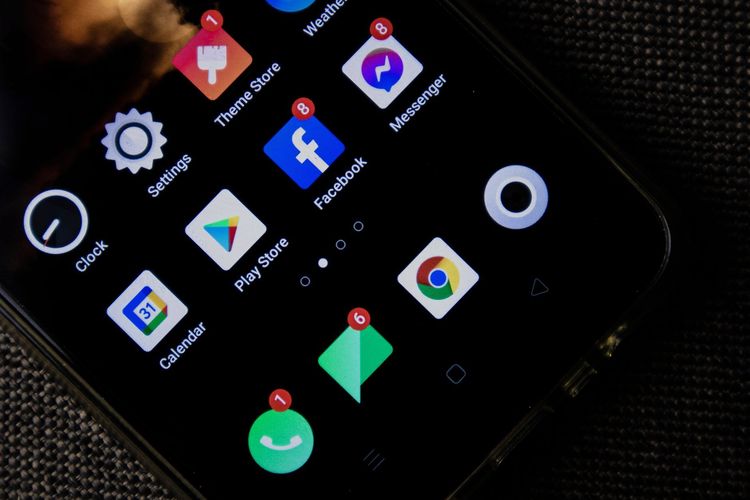
Calendar apps promise control, but many create a different problem: notification clutter. A tool meant to protect time can interrupt it with duplicate alerts, unclear sync, aggressive widgets, and reminders that train you to dismiss instead of decide. Reviewing a calendar app should therefore start with behavior, not aesthetics.
This guide is for practical evaluation, not legal, security, or productivity coaching. A good calendar app should make your schedule more reliable and easier to understand. It should not require you to surrender unnecessary data, rebuild your workflow every week, or accept alerts you cannot tune.
Define the calendar job
Before testing, write down what the app must do. Personal appointments? Shared family schedules? Work meetings? School deadlines? Shift planning? Travel across time zones? Habit blocks? A calendar app that is excellent for solo planning may be weak for shared caregiving. A beautiful timeline may fail if recurring events are clumsy.
Separate must-have has from attractive extras. Must-haves might include two-way sync with Google, Apple, or Microsoft calendars; reliable reminders; natural language input; widgets; offline viewing; shared calendars; and time-zone support. Extras might include themes, AI summaries, habit scoring, or decorative layouts.
Notification quality test
Create five test events: one all-day task, one timed meeting, one recurring weekly event, one shared event, and one event in a different time zone. Set reminders for each. Then watch what happens across phone, desktop, watch, and email if you use them. Are alerts duplicated? Are they clear? Can you choose sound, lock-screen visibility, snooze, and quiet hours?
Good notifications are specific and adjustable. They tell you what matters, when, and where. Weak notifications are vague, excessive, or impossible to silence without breaking the calendar. If the app uses urgency language for ordinary events, that may wear you down over time.
Sync reliability
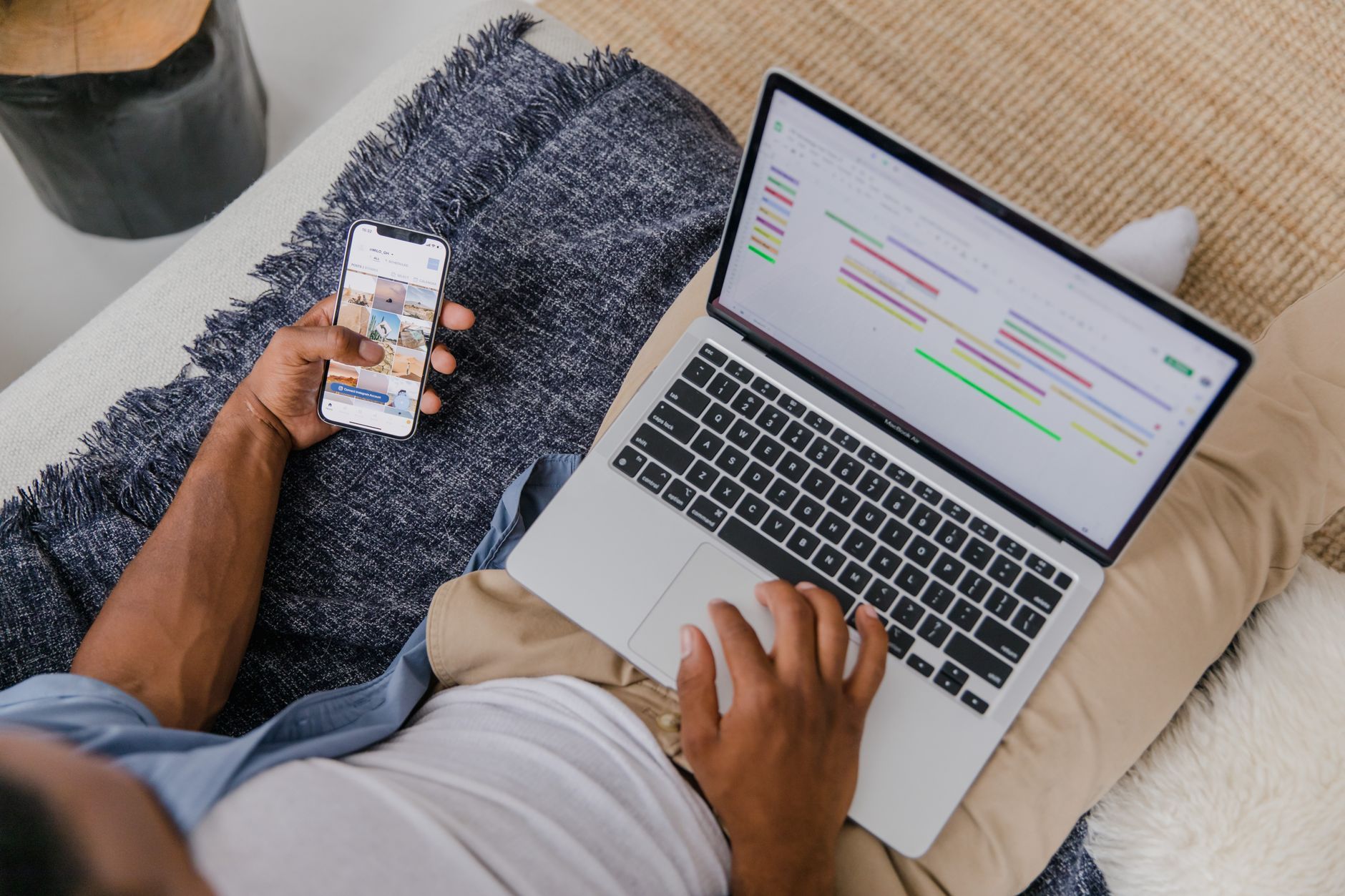
Sync is the boring feature that decides whether a calendar app can be trusted. Add an event on one device and confirm it appears correctly on another. Edit the time, delete it, restore it if possible, and invite another account. Check whether color, notes, location, attachments, and conferencing links survive the round trip.
Pay special attention to recurring events. Change one instance, then the whole series. Many calendar problems hide there. If the app duplicates events, drops notes, or confuses time zones, do not ignore it because the interface looks good. Reliability is the core product.
Privacy and account boundaries
Calendar data can reveal work patterns, health appointments, religious events, school routines, travel, addresses, and personal relationships. Review permissions and privacy claims before connecting every account. The FTC advises checking app permissions and turning off access that is not needed: https://consumer.ftc.gov/articles/how-websites-apps-collect-use-your-information.
Ask whether the app needs full calendar access or can work with selected calendars. Check whether it uploads event content for processing, offers local-only options, or uses third-party analytics. If it offers AI scheduling or summaries, read what data is sent and whether there are controls.
Sharing without confusion
Shared calendars are useful only when permissions are understandable. Test view-only sharing, edit access, invite forwarding, and removing someone. If the app is for family use, check whether children, caregivers, or relatives can see only what they should. If it is for work, confirm that personal calendars do not leak event details into availability sharing.
A good app makes the boundary visible: who can see titles, locations, notes, guests, and attachments. A weak app hides sharing rules behind icons or assumes everyone understands calendar jargon.
Time zones and travel
If you travel or work across regions, time-zone handling matters. Create an event for a city in another time zone, then view it before, during, and after a simulated travel setting if possible. Check whether the app shows local time, original time, or both. Confusion here can cause missed meetings.
Also test daylight saving changes if your schedule crosses regions. You do not need to become a time-zone expert, but the app should make ambiguity visible.
The notification diet
After a week, count how many calendar alerts you dismissed without acting. If the number is high, the app may be helping you create noise. Reduce default reminders, combine alerts, use agenda summaries, and reserve urgent notifications for events that require movement or preparation.
A calendar should support decisions: leave now, prepare this document, call this person, pick up this item, rest before this appointment. If most alerts do not trigger a useful decision, they are probably clutter.
Verdict framework
Score the app on reliability, reminder control, sync accuracy, privacy clarity, sharing controls, time-zone handling, speed, and ease of correction. Do not let visual polish outweigh missed events. A calendar app earns trust by being right on dull days.
The best calendar app is not the loudest planner. It is the quiet system that lets you look once, understand the day, and receive only the alerts that deserve your attention.
Recurring events are the stress test
Many calendar apps look excellent with a single appointment. Recurring events reveal the real design. Create a weekly class, a monthly bill, a birthday, a rotating shift, and a one-off exception. Move one occurrence. Cancel one occurrence. Change the whole series. Then check every connected device. If the app makes this hard to understand, daily use will become risky.
Recurring events also test language. Does the app explain “this event” versus “all future events” clearly? Does it preserve notes and guests? Does it handle end dates? Does it duplicate reminders? A calendar app that cannot manage repetition calmly is not ready to manage a real schedule.
Widgets and glanceability
Widgets can reduce app opening, but they can also create visual noise. Test agenda widgets, month views, lock-screen widgets, and watch complications if you use them. A good widget answers a quick question: what is next, when do I leave, or what does today look like? A weak widget crams too much text into too little space or hides the calendar you need.
Glanceability matters for accessibility too. Check contrast, text scaling, color dependence, and whether busy days remain readable. If you rely on color coding, make sure the labels or calendar names are still clear for people who cannot distinguish every color easily.
Import, export, and leaving the app
Before trusting a calendar app, ask how you leave it. Can you export events? Does it store events in standard calendars or only inside its own system? What happens if you cancel a subscription? Can you disconnect an account cleanly? Productivity apps can become traps when your schedule is easy to enter and hard to remove.
This is especially important for work and family calendars. A tool that controls shared routines should have a clear exit path. If the app uses proprietary has, decide whether those has are worth the lock-in.
Team and family etiquette
A calendar app can create social friction if sharing defaults are unclear. Test whether invitees see notes, location, attachments, guest lists, and reminders. In families, decide who can edit shared events and who only needs visibility. In teams, avoid putting private details into titles that may appear on availability screens.
The app should support polite scheduling: clear invites, easy declines, visible changes, and no surprise notification storms. If a shared calendar makes everyone more anxious, the tool is failing the group even if the feature list is impressive.
Final one-week test
Use the app for one normal week with a backup calendar still available. At the end, ask three questions. Did I miss anything? Did I dismiss too many alerts? Did the app make corrections easy? If the answer is poor, do not rationalize it because the interface is attractive.
A calendar app is infrastructure. It should be calm, accurate, reversible, and respectful of attention. The best review is not written after ten minutes of tapping through screens; it is written after the app survives ordinary life.
Offline and failure behavior
Calendars are most valuable when plans are changing, which is also when networks fail, batteries run low, or accounts temporarily disconnect. Test whether the app shows your existing schedule offline. Add a note offline, reconnect, and see whether it syncs cleanly. Check whether conflicts are explained or silently overwritten.
A failure mode should be understandable. If sync breaks, the app should show a warning rather than pretending everything is current. If an account disconnects, it should guide you back without hiding events. Trust comes from honest failure as much as smooth success.
Search and memory
A calendar is also a memory system. Test search for a person, place, keyword, and old event. If you use calendars for receipts, school notes, travel records, or project history, weak search will hurt later. Check whether attachments and notes are searchable or only titles.
Good search reduces notification pressure because you do not need to over-label every event or create duplicate reminders as memory aids. You can trust that the schedule will be findable when needed. That quiet confidence is part of productivity, even though it rarely appears in app-store screenshots.